

What is Agent One?
Agent One is Soundverse’s AI music producer. Describe what you want in plain language, and it plans the steps, picks the tools and runs them in order. One request can write lyrics, generate the song, give it a title and cover art, then separate stems or make a music video. Every result stays editable in the chat, your Library and AI Studio. Agent One can:- Use the creation tools: songs, instrumentals, lyrics, singing, speech, sound effects, images, video and music videos, Melody to Song, MIDI to Song and Artist DNA.
- Use the editing tools: Stem Separator, Extend, Inpainting, AI Remix, Voice Swap, Voice to Instrument, Similar Song and Similar Music, Translate Lyrics and more.
- Analyze songs: tempo and key, sections, transcription and copyright checks.
- Apply audio effects (EQ, reverb, delay, compression and more).
- Search the web and read YouTube links.
- Remember the conversation, so follow-ups like “make it a little louder” refer to the last thing you changed.
Getting started
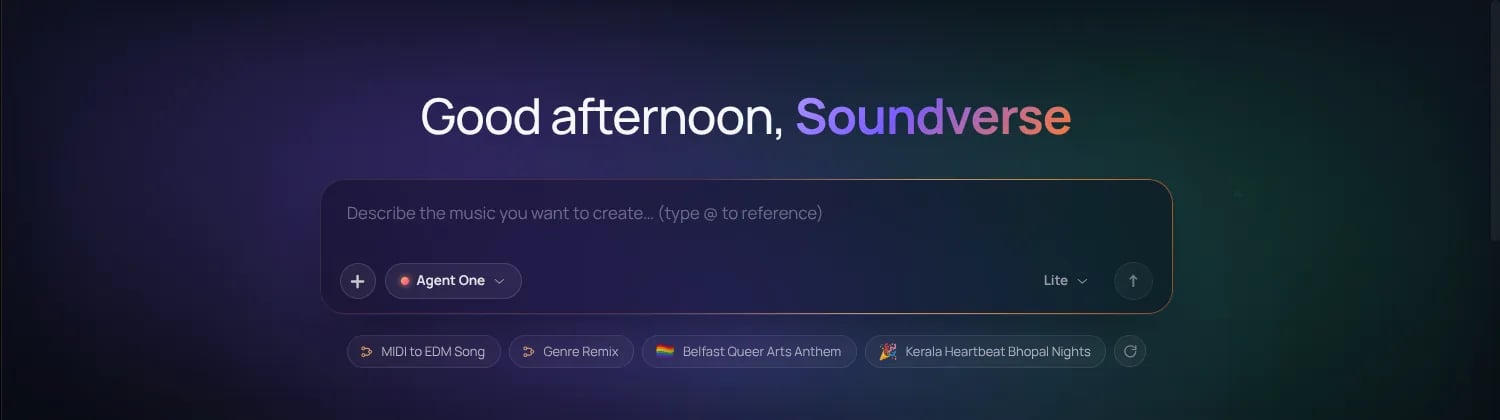
- Type your goal in the box on Home, or click Chat in the left sidebar. Make sure Agent One is selected in the composer.
- Optional: add references. Use the + menu to attach files from your Library, a document (PDF, DOCX, TXT or XLSX), a microphone recording of up to 60 seconds, or a YouTube or direct media link. Type @ to reference a song, Library file, DNA or playlist you already have.
- Pick a mode and send. Agent One may ask a quick question first, then shows its plan as a row of steps and runs each tool.
- Review the results. Play and download them in the chat, ask for changes in a follow-up, press Regenerate, or click Open in AI Studio to edit.
Modes
Pick a mode in the composer:
Each run uses tokens: the tools Agent One calls, plus its own steps (about 7 tokens a step in Lite, 54 in Standard and 128 in Pro). On the Free plan, Agent One runs in Lite mode, and a step that needs a paid tool stops at an upgrade prompt.
Which model does Agent One use?
Agent One makes songs with the newest Soundverse version your plan includes: Soundverse v6 on Free, v8 on Creator, and v9 on Pro and Max. To choose a specific model, open the tool you want from the composer (for example AI Song Generator) and pick a version from its Model menu. See Content and Generation for prices.Agent One in AI Studio
Click Agent One in the AI Studio top bar to have it edit your project live: it can add tracks and MIDI parts, write notes, choose instruments and effects, set the tempo and arrange clips. See AI Studio.1. How do I talk to Agent One?
Q1. How do I reference audio?
You can say:- “Use this track as reference” (after uploading / recording / choosing from library).
- “Take the song we just generated…”
- “On the last track, make the vocals louder.”
- “Use the YouTube link I just pasted as reference.”
- “Use my DNA model ‘DNA Name’ for style.”
Q2. How does context memory work?
Example:- “Add reverb to the entire track.”
- Agent applies reverb.
- “Increase it a little more.”
- Agent understands “it” = the reverb you just added.
- “Now only keep that reverb on the choruses.”
- Agent uses Section Analysis + effects automation to target choruses.
2. Commands by Tool
Below, for each tool/capability we list what it does and example things you can say.2.1 Song, Music & Vocal Generation
2.1.1 AI Song Generator (lyrics → full song with vocals)
What it does: Turns your lyrics (or prompts that include lyrics) into a full song with vocals. Things you can say:- “Turn these lyrics into a pop song with female vocals in 120 BPM, about 3 minutes long.”
- “Make a dark synthwave song from these lyrics. Keep the chorus big and atmospheric.”
- “Use my lyrics and generate a rock ballad with a long guitar solo at the end.”
- “Generate a Hindi pop song from this verse and chorus, keep it radio-friendly and under 3 minutes.
- “Make a duet version of these lyrics: one male, one female voice, trading lines in the verses.”
- “Use my DNA model for the production style, but keep the vocals generic.”
- “Render this in V5 streaming so I can quickly preview it while we edit.”
2.1.2 AI Music Generator (text → music, mostly instrumental)
What it does: Generates music from a text description (instrumental or minimal vocals). Things you can say:- “Create a 2-minute ambient synth track, 90 BPM, for a sci-fi game menu.”
- “Make a high-energy EDM drop in G minor, 128 BPM.”
- “Generate a chill lo-fi beat with vinyl crackle, slow tempo, for studying.”
- “Give me a cinematic orchestral build-up that resolves after 30 seconds.”
- “Create a soft piano + strings background loop for meditation, around 1 minute and loopable.”
2.1.3 AI Lyrics Writer
What it does: Writes lyrics or rewrites/extends existing lyrics. Things you can say:- “Write a verse and chorus for a trap song about the football World Cup in Spanish.”
- “Extend these lyrics with a second verse and a bridge, same rhyme scheme.”
- “Rewrite this chorus to be more uplifting but keep the same number of syllables.”
- “Turn this English verse into Hindi, preserving rhyme and rhythm as much as possible.”
- “Give me 10 alternative chorus ideas for this theme: heartbreak but self-empowered.”
2.1.4 AI Singing Generator
What it does: Takes lyrics (or generated text) and creates realistic singing/spoken vocals. Things you can say:- “Sing these lyrics in a soft female pop voice, mid-range, no ad-libs.”
- “Generate a rap delivery of these lines in Spanish, keep it tight and rhythmic.”
- “Resing just the chorus in a more powerful belting style.”
- “Make a spoken-word version of this poem over a subtle pad.”
- “Generate backing harmonies for this chorus: one above, one below the lead.”
2.1.5 Melody to Song
What it does: Turns a melody (hummed, sung, or played) into a full musical arrangement. Things you can say:- “Here’s me humming a melody—turn this into a full synthwave track with drums and bass.”
- “Use this whistled melody as the main hook of a funk song.”
- “Take this melody and build a Bollywood-style orchestration around it.”
- “Turn this melody into a sad piano ballad with minimal percussion.”
2.1.6 MIDI to Song
What it does: Uses a MIDI file (chords, melody, progression) and generates a full song. Things you can say:- “Here’s a MIDI chord progression. Turn it into a deep house track, 122 BPM, with a strong bassline.”
- “Use this MIDI melody as the lead for a trap beat.”
- “Take these chords and make a gospel-inspired arrangement with choir and organ.”
- “Turn this MIDI into a cinematic trailer cue with big drums and strings.”
2.1.7 DNA: Generate & Build
What it does: Uses your DNA models (trained on your songs) to generate in your own style; or builds new DNA from your catalog. Things you can say:- “Generate 10 song ideas in my ‘My DNA’ style, each around 1 minute.”
- “Make a new track using my ‘Lo-fi DNA’ but slower, around 85 BPM.”
- “Train a new DNA model from these 15 tracks I’m uploading called ‘New Album DNA’.”
- “Use my DNA model but make the drums more acoustic and less electronic.”
- “Generate only instrumentals in my DNA style, no vocals.”
2.1.8 Model Selection
What it does: Agent One uses the newest Soundverse version your plan includes. You can ask for a different one your plan allows. Things you can say:- “Make this with Soundverse v8 instead.”
- “Regenerate this with the same model you used earlier.”
- “Write and sing the lyrics in Hindi.”
2.2 Music Modification, Editing & Analysis
2.2.1 Stem Separator
What it does: Splits a mixed song into stems: 2 stems (vocals and music), 6 stems (vocals, drums, bass, guitar, piano and other), or every part with a MIDI file for each (Creator and above). Things you can say:- “Split this track into stems: vocals, drums, bass, other instruments.”
- “Isolate the vocals so we can replace or edit them.”
- “Separate the guitar track so we can add effects only to the guitar.”
- “Give me a version with vocals removed (instrumental).”
- “Give me a version with only drums and bass.”
2.2.2 Extend Music
What it does: Extends a track while keeping style and motifs consistent. Things you can say:- “Extend this song from 2 minutes to 3:30.”
- “Add a longer intro build-up before the beat drops.”
- “Give me a 30-second outro that feels like a fade-out.”
- “Loop this synth section for another 16 bars before the chorus.”
- “Turn this 15-second idea into a full-length 2-minute track.”
2.2.3 Inpainting (Song & Instrumental)
What it does: Rewrites selected parts of a track, keeping the rest intact. Things you can say:- “Rewrite just the second half of this verse; keep the rest of the song as-is.”
- “Give me 3 alternate versions of this chorus melody.”
- “Fix this off-key vocal phrase between 0:52 and 0:58.”
- “Replace the drop with a more minimal version, but keep the build the same.”
- “Change the chord progression in the bridge but leave the vocals unchanged.”
2.2.4 Section Analysis
What it does: Detects structural sections like intro, verse, chorus, bridge, drop, etc. Things you can say:- “Analyze this track and show me the sections: intro, verse, chorus, bridge, outro.”
- “Identify all the choruses so we can edit them.”
- “Tell me where the drops are in this track.”
- “Mark the sections where vocals are present vs instrumental only.”
- “Show me which part could work as a loop for TikTok or Reels.”
2.2.5 Key & Tempo Detection / Change
What it does: Detects BPM & key, and changes tempo and/or pitch. Things you can say:- “What is the BPM and key of this track?”
- “Increase the tempo by 10% but keep the pitch the same.”
- “Change the BPM from 100 to 120.”
- “Shift the key up by 2 semitones.”
- “Move this song from C minor to E♭ minor.”
- “Match the tempo and key of this song to that reference track.”
- “Find the BPM and key of this track, then generate an instrumental in the same BPM and key.”
2.2.6 Effects Engine (Compressor, Reverb, EQ, etc.)
AvailableEffects:["compressor","limiter","gain","high_pass","low_pass","peak_eq","high_shelf","low_shelf","reverb","delay","chorus","phaser","distortion","noise_gate"]
Things you can say:
- “Add a bit of reverb to the lead vocal.”
- “Make the whole mix slightly louder, around +1 dB.”
- “Use a high-pass filter on the vocals at 100 Hz to remove rumble.”
- “Warm up the master with a gentle low-shelf boost around 200 Hz.”
- “Make the track sound ‘underwater’.”
→ Agent might apply low-pass, reverb, maybe chorus - “Make it sound ‘spacey’ and wide.”
→ Agent uses reverb, delay, chorus/phaser. - “Add gentle compression to glue the mix together.”
- “Put a limiter on the master so it doesn’t clip.”
- “Add some distortion to the guitar to make it more aggressive.”
- “Open up the high end of the hi-hats with a high-shelf boost.”
- “Increase the reverb just a little more on the chorus vocals.”
- “Undo the distortion but keep the EQ changes.”
2.2.7 Merge Audio (Concatenate)
What it does: Puts clips/tracks one after another. Things you can say:- “Place this new chorus after the existing one.”
- “Join these three ideas into one track: first A, then B, then C.”
- “Attach this outro after the main song.”
- “After 1 minute, append this instrumental as an extended outro.”
2.2.8 Audio Layering (Stacking / Mixing)
What it does: Stacks tracks on top of each other. Things you can say:- “Layer this vocal take on top of the main vocal for double-tracking.”
- “Add these new backing vocals under the chorus.”
- “Put this beat under the acapella we extracted.”
- “Blend this pad subtly behind the verses only.”
2.3 Controlled Generation Tools
2.3.1 Voice Swap
What it does: Changes one vocal performance into another voice style. Things you can say:- “Replace this singer’s voice with my voice model.”
- “Turn this male vocal into a female vocal with a softer tone.”
- “Swap the verse vocals into a gritty rock voice, but keep the chorus as it is.”
- “Use my ‘Creator Voice 01’ for all the leads, and keep backups generic.”
2.3.2 Voice to Instrument
What it does: Converts a vocal performance into an instrument (e.g., sitar, drums, bansuri, guitar). Things you can say:- “Turn this hummed melody into a sitar line.”
- “Convert this sung hook into an electric guitar riff.”
- “Use this vocal rhythm to drive a drum pattern.”
- “Turn this vocal line into a bansuri melody layered over the mix.”
2.3.3 Similar Music Generator
What it does: Generates music in the style of a reference track (usually instrumental / production focus). Things you can say:- “Generate a new synthwave track in the style of this reference track.”
- “Make a similar lo-fi beat but with a different melody.”
- “Create a techno track inspired by this YouTube link, but don’t copy the chords.”
- “Generate 10 background music variations in the style of this game soundtrack.”
2.3.4 Similar Song Generator
What it does: Creates full songs (structure, vibe) in a similar style to a reference. Things you can say:- “Create a song in a similar style to this track, but with new melodies and chord progressions.”
- “Give me 5 variations inspired by this reference but slower and more mellow.”
- “Make a similar Bollywood song but in Punjabi instead of Hindi.”
- “Generate 3 similar songs for this reference that I can use as demos.”
2.4 System-Level Tools
2.4.1 Web Search API
What it does: Fetches up-to-date info from the web. Things you can say:- “Show me the current trending songs in the world.”
- “What are the top Afrobeats tracks this month?”
- “Find popular synthwave tracks released this year.”
- “What’s trending in Latin trap right now?”
2.4.2 YouTube URL Extractor
What it does: Takes a YouTube URL and extracts audio as reference. Things you can say:- “Use this YouTube song as a reference for vibe: [paste URL].”
- “Extract the audio from this link and make a similar instrumental.”
- “Take the structure of this song and suggest a similar arrangement for my track.”
2.4.3 Recording, Upload, Library Selection
What it does: Gets audio into the system. Things you can say:- “Record my voice, I’ll sing a hook.”
- “Use the file I just uploaded as the main track.”
- “Open my library and use the song ‘demo_05’ as reference.”
- “Record 20 seconds of humming; then turn it into a song.”
3. Example Workflows (with Tool Sequences)
Below are concrete multi-step workflows. For each, we show:- User ask
- Example prompts
- Tool sequence Agent uses
3.1 Trend-based Generation
Workflow 1 – See global trending songs
User ask: “Show me the current trending songs of the world.” Tool sequence:- Web Search API → query global charts (e.g., “current top songs worldwide”).
- Agent summarizes results for the user (titles, artists, styles).
Workflow 2 – Generate 10 synthwave songs in trending style
User ask:“In the style of today’s trending songs in synthwave, generate 10 new synthwave songs.” Tool sequence:
- Web Search API → find trending synthwave / related tracks.
- YouTube URL Extractor → optionally pull audio for some of those tracks.
-
For each new song:
- Similar Music Generator / Similar Song Generator → create new synthwave tracks inspired by those references.
- Optionally AI Music Generator → fine-tune prompts (tempo, mood).
- Present 10 generated synthwave songs.
3.2 Direct Prompted Song Creation
Workflow 3 – Trap song about football World Cup in Spanish
User ask:“Make a trap song about football worldcup in Spanish.” Example prompts:
- “Write Spanish trap lyrics about the World Cup, high energy, stadium vibe.”
- “Turn these lyrics into a full trap song.”
- AI Lyrics Writer → generate Spanish trap lyrics.
- AI Song Generator → create full trap song with Spanish vocals based on those lyrics.
- (Optional) Section Analysis → show user structure.
- User can then ask for edits (inpainting, effects, etc.).
Workflow 4 – Generate 10 songs in my DNA style
User ask:“Generate 10 songs in my DNA style.” Tool sequence:
- DNA Generation → select given DNA model (e.g., “My DNA”).
-
For each of 10 tracks:
- AI Music Generator / AI Song Generator with DNA model as style.
- (Optional) Section Analysis → return structures or loops for quick listening.
3.3 Voice Replacement & Vocal Editing
Workflow 5 – Replace song’s vocals with my voice
User ask:“Replace this song’s vocals with my voice.” Tool sequence:
- Stem Separator → isolate existing vocals and instruments.
-
Voice Swap → apply user’s voice model to the vocal stem; or
- AI Singing Generator → resing using user’s custom voice if supported.
- Layering / Merge → combine new vocal with instrumental.
- (Optional) Effects Engine → match tone (EQ, compression, reverb).
Workflow 6 – Increase volume of vocals in second chorus by 1 dB
User ask:“Increase the volume of vocals on second chorus by 1 decibel.” Tool sequence:
- Section Analysis → detect all choruses and locate second chorus region.
- Stem Separator → get vocal stem (if not already isolated).
- Effects Engine (gain) → apply +1 dB gain to vocal stem in second chorus region only.
-
Return result; user may say:
- “A bit more” → Agent increases gain slightly again, same region.
Workflow 7 – Generate verse with new lyrics alternative
User ask:“Generate verse with new lyrics alternative.” Tool sequence:
- Section Analysis → locate the verse you want to replace.
- AI Lyrics Writer → create new verse lyrics (matching theme / syllables).
- AI Singing Generator → sing the new verse.
- Inpainting → replace original verse audio with new verse, keeping surrounding sections intact.
3.4 Structural Edits & Looping
Workflow 8 – Repeat the chorus twice
User ask:“Repeat the chorus twice.” Tool sequence:
- Section Analysis → identify chorus region(s).
- Merge Audio (concatenate) → duplicate chorus region and place second copy right after first.
- (Optional) Inpainting → smooth transitions in/out of duplicated chorus.
Workflow 9 – Turn chorus into a perfectly loopable section
User ask:“Turn the chorus into a perfectly loopable section.” Tool sequence:
- Section Analysis → isolate chorus region.
- Inpainting / Extend Music → adjust start/end of chorus to loop cleanly (align beats / crossfade).
- Export loop as a stand-alone loop segment.
Workflow 10 – Stitch multiple ideas into one song
User ask:“I have three sketches A, B, and C. Join them into one continuous song.” Tool sequence:
- Upload / Library selection → choose clips A, B, C.
- Section Analysis (per clip) → understand structure & key/BPM of each.
- Key & Tempo Tools → adjust clips to a consistent BPM/key if needed.
- Merge Audio → A → B → C in chosen order.
- Inpainting → smooth transitions between each pair.
3.5 Tempo, Key & Style Transformations
Workflow 11 – Identify BPM & key and make instrumental in same style
User ask:“Identify the bpm, and key of this track, and make an instrumental track in this style.” Tool sequence:
- Key & Tempo Detection → find BPM and key.
- (Optional) Stem Separator → create instrumental from original (remove vocals).
- Or Similar Music Generator → new instrumental track inspired by reference, using detected BPM/key.
- Return instrumental to user.
Workflow 12 – Change key and regenerate vocals
User ask:“Raise the key of the entire song by 2 semitones and keep the vocals sounding natural.” Tool sequence:
- Key & Tempo Detection → find original key.
- Key Change → plan shift of +2 semitones.
- Stem Separator → isolate vocals.
- Inpainting / AI Singing Generator → re-render vocals in the new key (to avoid artifacts).
- Merge Audio → combine new vocals with key-shifted instrumental.
Workflow 13 – Create a DJ edit at 128 BPM
User ask:“Make a DJ-friendly edit of this song at 128 BPM with a longer intro and outro.” Tool sequence:
- Key & Tempo Detection → detect original BPM & key.
- Tempo Change → time-stretch to 128 BPM (keeping pitch).
- Section Analysis → identify intro/outro.
- Extend Music → lengthen intro & outro (e.g., 16/32 bars).
- Inpainting → smooth edits if needed.
3.6 Multi-language & Translation Workflows
Workflow 14 – Translate song into multiple languages and regenerate track
User ask:“Translate this song into Hindi, Spanish, Swedish and French. Give me the new track.” Tool sequence:
- Stem Separator → isolate vocals & instrumental.
- Translate Lyrics → translate the lyrics into Hindi, Spanish, Swedish and French, keeping the phrasing singable.
-
For each language:
- AI Singing Generator → generate vocals in that language.
- Layering → place new vocals over original instrumental.
- (Optional) Effects Engine → match tone & reverb to mix.
- Return 4 new language versions.
Workflow 15 – Multi-language choruses only
User ask:“Make the chorus in Hindi and the verses in English.” Tool sequence:
- Section Analysis → find chorus and verse regions.
- Translate Lyrics → translate the chorus into Hindi; keep verses in English.
- AI Singing Generator → generate Hindi chorus vocals + English verse vocals.
- Inpainting → replace chorus sections only.
- Layering / Mix → combine for final bilingual song.
3.7 Detailed Effects & Mixing Automation
Workflow 16 – Add more reverb to guitar in choruses and lower elsewhere
User ask:“Add more reverb to the guitar, but only in all the chorus, decrease the volume of guitar by 20% in rest of the sections.” Tool sequence:
- Stem Separator → isolate guitar stem.
- Section Analysis → detect all chorus sections vs non-chorus sections.
-
Effects Engine (reverb + gain):
- In chorus sections → increase reverb amount on guitar stem.
- In all other sections → reduce guitar gain by ~20%.
- Return new mix.
- “The reverb is too much—dial it back slightly.”
- “Make the guitar a bit louder in the bridge only.”
Workflow 17 – Make track sound “underwater” or “spacey”
User ask:- “Make the whole track sound like it’s underwater.”
- “Make the chorus sound more spacey and wide.”
-
Effects Engine:
- For “underwater” → strong low_pass, extra reverb, subtle chorus.
- For “spacey” → reverb, delay, chorus/phaser, slight stereo widening if available.
- Optionally Section Analysis → restrict changes to chorus or target section.
Workflow 18 – Boost only the hook for TikTok
User ask:“Make the hook pop more on TikTok: louder vocal, less low-end and more high-end.” Tool sequence:
- Section Analysis → identify hook section(s).
- Stem Separator → isolate vocals & instruments.
-
Effects Engine:
- Increase gain on hook vocals.
- Use peak_eq / high_shelf to brighten.
- Possibly low_shelf cut on full mix during hook.
- Return modified track.
3.8 Looping, Short-form & Platform-specific
Workflow 19 – Create a 1-minute TikTok-friendly version starting from hook
User ask:“Make a 1-minute TikTok version of my song that starts directly with the hook.” Tool sequence:
- Section Analysis → find hook/chorus and key sections.
-
Merge / Arrangement:
- Reorder so the song starts with the hook.
- Trim total duration to ~1 minute.
- Inpainting → smooth transitions / add small intro gap if needed.
Workflow 20 – Make a perfectly loopable 30s background track
User ask:“From this song, create a 30-second loopable background segment.” Tool sequence:
- Section Analysis → find sections that can loop well (e.g., a stable groove).
- Key & Tempo → ensure consistent BPM.
- Inpainting / Extend Music → adjust boundaries for clean loop.
- Deliver the 30-second seamless loop.
3.9 Reference-driven Generation
Workflow 21 – Generate similar beats from YouTube reference
User ask:“From this YouTube link, generate 5 similar beats without copying the melody.” Tool sequence:
- YouTube URL Extractor → pull audio.
- Section Analysis & Key/Tempo → understand structure, BPM, key.
- Similar Music Generator → generate 5 different beats inspired by that track’s style.
- (Optional) Effects / tempo adjustments as requested.
Workflow 22 – Make a lo-fi version of my song
User ask:“Create a lo-fi version of this song for studying.” Tool sequence:
- Key & Tempo → optionally slow the BPM.
- Stem Separator → separate vocals/instruments (if you want instrumental-only).
- Similar Music Generator / AI Music Generator → regenerate with lo-fi vibe (softer drums, vinyl noise, etc.).
- Effects Engine → apply low_pass, gentle distortion, maybe chorus.
- Deliver lo-fi mix.
3.10 Instrumental & Practice Tracks
Workflow 23 – Create a karaoke instrumental
User ask:“Give me a clean instrumental version for karaoke.” Tool sequence:
- Stem Separator → isolate vocals from instruments.
- Mute vocals → keep only instrumental stems.
- (Optional) Effects Engine → tidy up mix.
- Output instrumental.
Workflow 24 – Remove drums for practice
User ask:“Remove the drums so I can play them live over the track.” Tool sequence:
- Stem Separator → get drum stem (if available) plus rest of instruments.
- Mute drum stem.
- Output drumless mix.
3.11 Game / Batch Content Generation
Workflow 25 – 20 short game tracks
User ask:“Generate 20 short, royalty-free game background tracks, 60–90 seconds each.” Tool sequence:
-
For each of 20 tracks:
- AI Music Generator → with constraints (tempo, mood, length).
- Optionally, Similar Music Generator from a chosen style reference.
- Return bundle with labeled moods (e.g., menu, battle, victory).
3.12 Melody / MIDI-driven Workflows
Workflow 26 – Turn humming into full song
User ask:“I’ll hum an idea; turn it into a full pop song with lyrics and vocals.” Tool sequence:
- Record Audio → capture humming.
- Melody to Song → build instrumental around the melody.
- AI Lyrics Writer → generate lyrics matching melody structure.
- AI Singing Generator → sing the lyrics over the song.
- (Optional) Effects → polish mix.
Workflow 27 – Build EDM track from MIDI
User ask:“Here’s a MIDI chord progression—turn it into a big-room EDM track at 128 BPM.” Tool sequence:
- Upload MIDI.
- MIDI to Song → generate arrangement with chosen style.
- Key/Tempo → ensure BPM = 128 and appropriate key.
- (Optional) Effects Engine → extra processing on master.
3.13 DNA-Focused Workflows
Workflow 28 – Train a new DNA model on my catalog
User ask:“Train a new DNA model using these 10 songs from my last EP.” Tool sequence:
- Upload / Library selection → choose the 10 songs.
- DNA Build / Training → Agent One asks you to confirm you own the songs or have permission, then creates the new DNA model (e.g., “EP 2025 DNA”). Training a DNA needs the Creator plan or above.
-
Return status + future prompts:
- “Now generate 5 ideas using my ‘EP 2025 DNA’.”
Workflow 29 – Batch ideas from DNA
User ask:“Generate 20 short ideas in my new DNA style, all around 45 seconds.” Tool sequence:
- DNA Generation → select DNA model.
-
For each idea:
- AI Music Generator → 45-second clips.
- Collect and present as an idea bank.
3.14 Voice Creative Workflows
Workflow 30 – Voice to instrument lead & harmonies
User ask:“Turn my sung melody into a guitar lead, then add harmony lines.” Tool sequence:
- Record / Upload vocal.
- Voice to Instrument → create guitar lead.
- Similar Music / AI Music Generator → generate harmonized variations.
- Layering → stack harmonies on top of original track.
Workflow 31 – Swap my rap verse voice & keep hook original
User ask:“Turn my rap verse into a deeper, more aggressive voice, but keep the original hook vocal.” Tool sequence:
- Section Analysis → separate verse vs hook.
- Stem Separator → isolate vocal stem.
- Voice Swap → apply new voice style only to verse regions.
- Merge / Layer → combine swapped verse with original hook.
3.15 Structural Feedback & Suggestions
Workflow 32 – Analyze structure and suggest improvements
User ask:“Analyze this track’s structure and suggest changes to make it more catchy.” Tool sequence:
- Section Analysis → map intro, verses, choruses, etc.
- Agent (LLM) → suggests changes (e.g., “move first chorus earlier”).
-
If user agrees:
- Merge / Reorder sections accordingly.
- Inpainting → smooth transitions.
Workflow 33 – Give me 3 variations of the chorus
User ask:“Give me 3 variations of the chorus.” Tool sequence:
- Section Analysis → identify chorus.
- Inpainting → generate 3 alternative versions (melody / production).
- (Optional) AI Lyrics Writer + AI Singing Generator → if user also wants lyrical variations.
- Provide A/B/C chorus versions.
3.16 Batch Hooks & Short Ideas
Workflow 34 – 20 short hooks about a topic
User ask:“Generate 20 different 15-second hooks about space travel in a modern pop style.” Tool sequence:
-
For each idea:
- AI Lyrics Writer → short hook lyrics.
- AI Song / Music Generator → 15-second musical hook.
- Present 20 hooks as separate snippets.
3.17 Complex Example Combining Many Tools
Workflow 35 – “Identify BPM/key, generate instrumental, edit sections, add effects”
User ask (sequence):- “Identify the bpm, and key of this track, and make an instrumental track in this style.”
- “Give me 3 variation of the chorus.”
- “Turn the chorus into a perfectly loopable section.”
- “Add more reverb to the guitar, but only in all the chorus, decrease the volume of guitar by 20% in rest of the sections.”
- Key & Tempo Detection → BPM, key.
- Stem Separator → create instrumental (mute vocals) or Similar Music Generator → new instrumental in same style.
- Section Analysis → locate chorus.
- Inpainting → generate 3 alternate chorus versions.
- Extend / Inpainting → make chosen chorus loopable.
- Stem Separator (if not already) → isolate guitar.
- Effects Engine → chorus: more reverb on guitar; non-chorus: -20% gain on guitar.
- Deliver final track + loopable chorus segment.
4. Contextual Follow-ups – How does “remembering context” work in practice?
Examples:-
Effects context
- “Add reverb effect to the entire track.”
- Agent applies reverb.
-
“Increase it a little more.”
→ Agent increases reverb level, not something else. -
“Now only keep that reverb on the vocals, remove it from everything else.”
→ Agent uses stems + automation to keep vocal reverb only.
-
Section context
- “Replace the second chorus with a new variation.”
- Agent does it.
-
“Actually, also give me a second version that keeps the old chorus but with more drums.”
→ Agent knows “old chorus” vs “new one,” can branch or create alt take.
-
Reference context
- “Use this YouTube song as reference.” (paste URL)
- Agent extracts and generates similar track.
-
“Make another one but slower and with more atmospheric pads.”
→ Agent keeps using same reference song unless you change it.