
Mac
- Open the downloaded
.pkgfile. - The beta installer isn’t signed with an Apple Developer ID yet, so macOS stops it the first time with “Soundverse…pkg” can’t be opened or Apple can’t check it for malicious software. Click OK (or Done).
- Open System Settings › Privacy & Security and scroll down to Security. You’ll see “Soundverse…pkg” was blocked from use because it is not from an identified developer. Click Open Anyway.
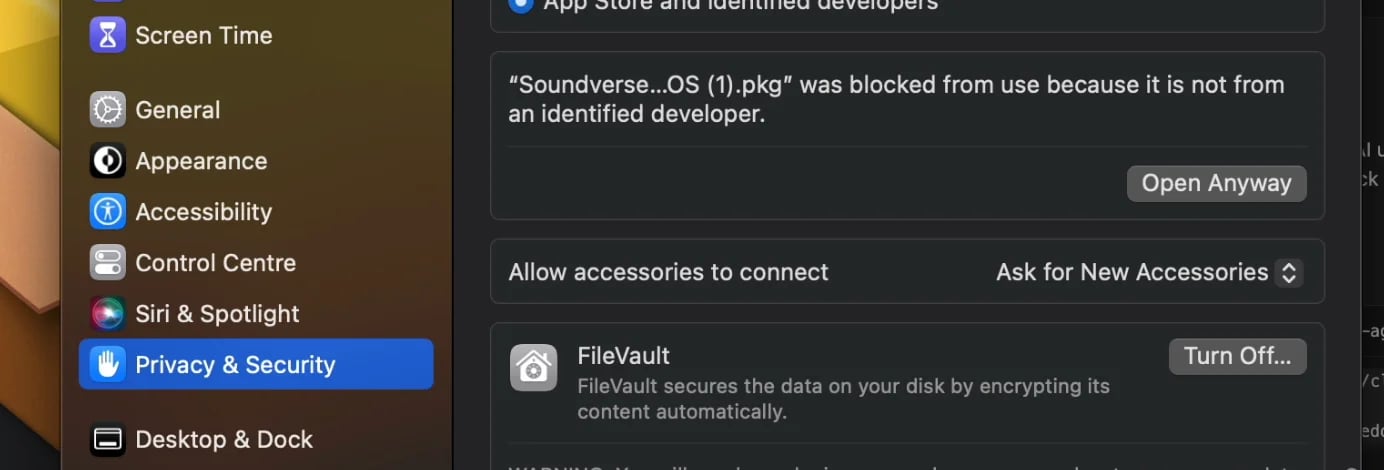
- Enter your Mac password if asked, then click Open in the next dialog.
- Follow the installer. Continue › Install installs everything: the three VST3 plug-ins, the Audio Unit, CLAP and the standalone app. Click Customize to pick formats.
- When it says Soundverse AI VST is installed, open your DAW and find the plug-in. You can move the installer to the Bin.
Windows
- Open the downloaded
Soundverse-…-Windows-Setup.exe. - The beta installer isn’t code-signed yet, so Windows SmartScreen may show Windows protected your PC. Click More info, then Run anyway.
- Allow the installer to make changes, choose Everything (recommended) and click Install. It also installs Microsoft WebView2 if your PC doesn’t have it.
- The last page shows where to find the plug-in in each DAW.
C:\Program Files\Common Files\VST3 (and …\CLAP). To uninstall, use Settings › Apps › Installed apps › Soundverse AI VST › Uninstall.
Linux
Install the.deb with your package manager, for example:
/usr/lib/vst3 and /usr/lib/clap.